Manage Your Skills and Skill Paths - Web
In the Learner Portal, skills can be:
- Explored and added by you from the "Explore" page, allowing you to personalize your development.
- Assigned by an administrator as part of a structured learning plan tailored for you.
This article explains how to view and manage your skills and skill paths, helping you stay focused and in control of your development goals.
Access to Your Skills and Skill Paths
To view the skills you've already added or that have been assigned to you, and to manage their associated skill paths:
- Go to My Learning section
- Select Skill Paths tab. Here, you will see a list of all your added skills.
- Select a skill name to open its Skill Details page.
 Note: If you added a skill path but didn't add its corresponding parent skill, you can find that skill path under the "Others" tab within My Learning.
Understanding Skill Details
The Skill Details Page allows you to view your current skills and track your progress toward completion at any time. This helps you stay informed about your learning journey and see how close you are to mastering each skill.
From the Skill Detail Page, you can:
- See which Skill Paths are associated with the skill.
- View your grade and completion status for each path.
- Review the list of courses linked to each skill path.
- Monitor overall progress toward completing the skill.
This view gives you clear visibility into what’s completed, what’s in progress, and what’s next.
Add more Skill Paths
To add more skill path in a skill:
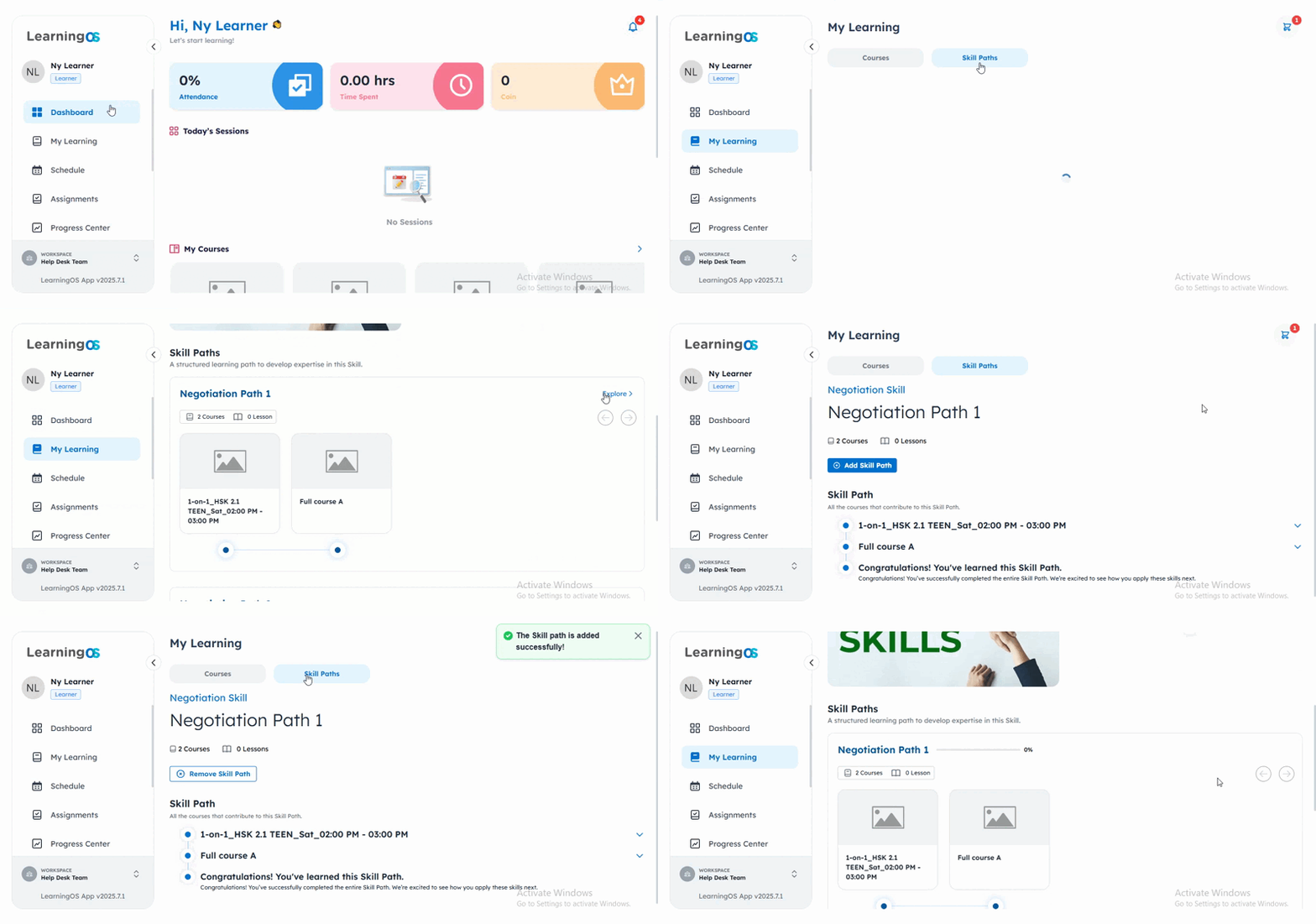
- Go to My Learning section > Skill Paths tab.
- Select a skill name to open its Skill Details page.
- In the skill details, click the Explore button next to the skill path you wish to add.
- The skill path is added successfully.
Enroll free courses Within a Skill Path
If a skill path includes courses that are designated as free, you can self-enroll directly from the path's details:
- Open the Skill Path Detail Page (by clicking "View Details" on a skill path you've added).
- Click Enroll Free Courses button. This will open the Enrollment Confirmation modal.
- Click Enroll button to confirm your enrollment.
Note: Once enrolled, these courses will appear under My Learning > Courses.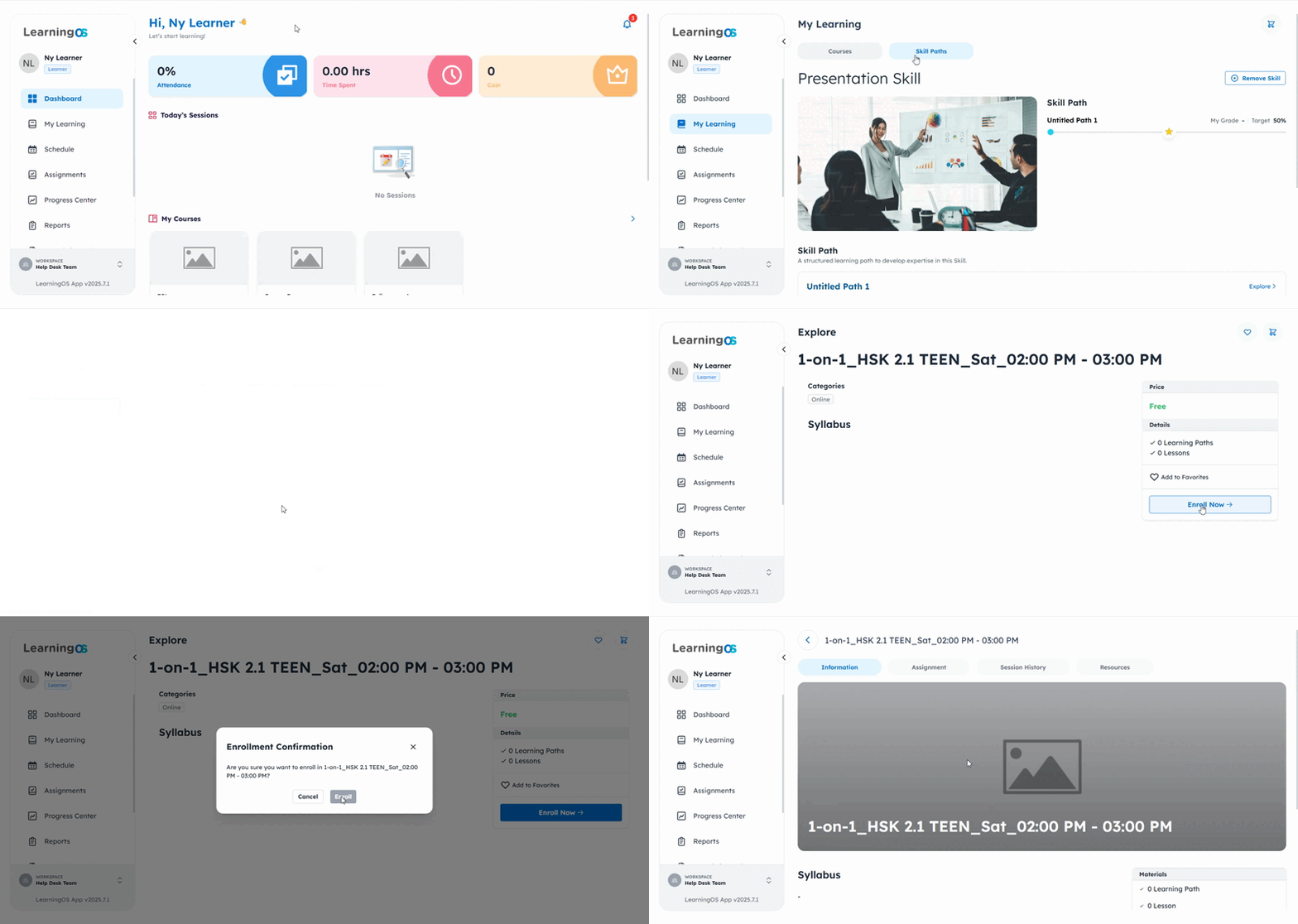
How to Remove a Skill and a Skill Path
You have the flexibility to remove skills and skill paths from your learning plan if they are no longer relevant to your goals.
To remove a skill:
- Go to My Learning > Skill Paths tab.
- Select the skill you want to remove.
- Click Remove Skill button.
Note: Removing a skill does not affect any skill paths you've already added. Those skill paths will remain in your learning plan, likely under the "Others" tab if they don't have a parent skill.
To remove a skill path:
Go to My Learning > Skills Tab.
Select the Skill associated with the path (or find it under "Others").
Click on the Skill Path you wish to remove.
Click Remove Skill Path button.
Note:
- You can only remove skill paths that you added yourself from the "Explore" page.
- Removing a skill path does not unenroll you from any courses you’ve already enrolled in.
Related Articles
Explore New Skills and Skill Paths - Web
Skills represent specific abilities or areas of knowledge that you're expected to develop—like effective communication, data analysis, or leadership. Once a skill is part of your learning, you can monitor your progress through Skill Paths tab. This ...Manage Your Assignments - Web
The Learner Portal allows you to view and manage all your assignments across different courses. All assignments are organized into two main categories: Ongoing assignments and Finished assignments. There are two different ways you can access your ...Manage Your Sessions - Web
The Schedule page in the Learner Portal lets you view, join, and manage your sessions. You can also access all sessions for any specific course through the course details. This guide walks you through viewing past and upcoming sessions, booking new ...Find and Manage Your Instructors - Web
The Instructor page helps you discover, review, and manage instructors based on your learning preferences and history. Find Your Instructors On the left menu bar, go to the Instructor page. This page is organized into three tabs to help you explore ...Course Resources - Web
The Resources tab is where you can find all additional materials that your instructor has shared for each course. How to Access Course Resources Finding your course resources is a simple process that involves the following steps: First, navigate to ...