Knowledge Hub - Web
The Knowledge Hub is a central library that contains all workspace-related resources (excluding courses).
How to Access the Knowledge Hub
Accessing the Knowledge Hub is straightforward. You can go to the Knowledge Hub page in the left menu of your workspace.
Once you enter the Knowledge Hub, you may find folders and documents.
- The Folders section contains groups of related resources. Each folder can be opened to explore its specific contents, making it simple to find what you need.
- If the files are not in the folder, they will be shown in the Files Table. This table displays important information including File Name and Content Type field, which indicates the specific file format or type of each item. You can sort the list in alphabetical and numerical order (ascending or descending) by clicking Name ↑ or ↓ to find items more easily.
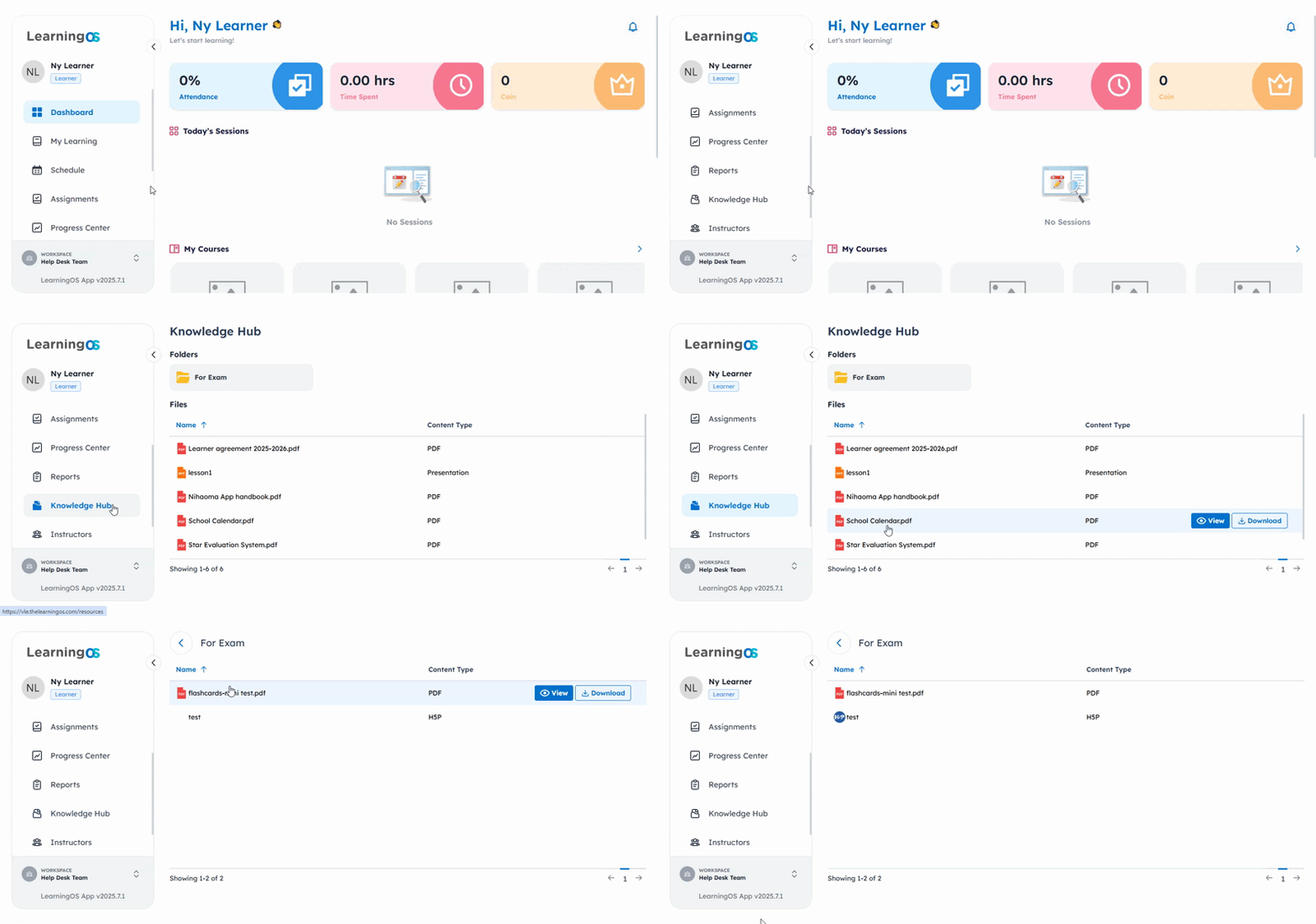
How to View and Download Files
When you're ready to access a resource, Viewing and Downloading files are simple:
- Hover over the file name you're interested in.
- You can select the View option to preview the file's contents directly in your browser.
- Alternatively, choose the Download option to save the file to your local device.
 Note: H5P content is available for viewing only and cannot be downloaded to your device.
Related Articles
Course Resources - Web
The Resources tab is where you can find all additional materials that your instructor has shared for each course. How to Access Course Resources Finding your course resources is a simple process that involves the following steps: First, navigate to ...Explore New Skills and Skill Paths - Web
Skills represent specific abilities or areas of knowledge that you're expected to develop—like effective communication, data analysis, or leadership. Once a skill is part of your learning, you can monitor your progress through Skill Paths tab. This ...Change Your Pin - Web
To change your PIN: On the main dashboard, click your Profile Photo to open the Account Settings. From the dropdown menu, select Change PIN. Enter your current PIN, your new PIN, and confirm your new PIN. Click Update to complete the process.Manage Your Assignments - Web
The Learner Portal allows you to view and manage all your assignments across different courses. All assignments are organized into two main categories: Ongoing assignments and Finished assignments. There are two different ways you can access your ...Manage Your Sessions - Web
The Schedule page in the Learner Portal lets you view, join, and manage your sessions. You can also access all sessions for any specific course through the course details. This guide walks you through viewing past and upcoming sessions, booking new ...